What are the core hardware components of a Remote IT Support Kiosk?
A remote self-service IT support kiosk isn’t one piece of equipment. It’s several components working together, and each one plays a specific role in getting an employee back up and running without a technician on site. Here are its core components:
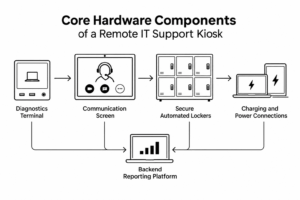
- Diagnostics terminal. This is where an employee starts. Some units let employees plug a faulty device directly into the terminal, so a technician can run diagnostics remotely before anyone speaks. This step cuts down on back-and-forth once the live conversation starts.
- Communication screen. A larger touchscreen handles the actual conversation. It connects to a live technician over video or chat, often integrated with the platforms IT teams already use, like Teams, Zoom, Webex, or Cisco. This is the part of the interaction that mirrors an in-person help desk visit.
- Secure automated lockers. Once the technician confirms a fix, the kiosk dispenses a loaner or replacement device from an individually locked compartment. The employee returns the broken unit to another compartment, and the exchange is logged automatically.
- Charging and power connections. Loaner devices sit charged and ready inside their compartments, so there’s no delay once a locker opens.
- Backend reporting platform. Every transaction, from check-in to hardware exchange, feeds into a software layer that tracks inventory, condition, and location across every deployed unit.
None of these pieces work well in isolation. A screen without a locker just gives someone a diagnosis and nowhere to go. A locker without live technician access is a vending machine, not a support solution. The value comes from all four layers running as one connected system, so an employee’s entire interaction, from reporting a problem to walking away with a working device, happens in a single visit.
How a Remote IT Support Kiosk Works, Step by Step
The workflow is designed to mirror a normal help desk interaction, just without the travel time. Each step happens in sequence, and most kiosks complete the full cycle in a single visit.
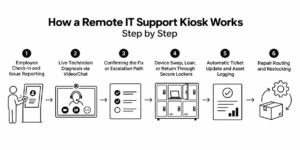
Step 1: Employee Check-In and Issue Reporting
An employee walks up, authenticates with a badge, PIN, or login, and reports the issue on the kiosk’s screen. Some units let the employee plug the faulty device directly into the terminal to start diagnostics right away. This step replaces the usual first email or call to the help desk, and it happens in seconds instead of sitting in a queue.
Step 2: Live Technician Diagnosis via Video/Chat
A remote technician connects over video, chat, or a platform like Teams, Zoom, or Webex. They walk through diagnostics with the employee in real time, the same conversation they’d have in person, just through a screen. If the device is plugged into the terminal, the technician can often see diagnostic data directly, cutting down on guesswork and back-and-forth questions.
Step 3: Confirming the Fix or Escalation Path
Not every issue ends in a hardware swap. Some get resolved on the spot through a software fix, a settings change, or a quick walkthrough. Others need a physical replacement. The technician makes that call during the live session, so the employee knows immediately what happens next, rather than waiting for a follow-up ticket update.
Step 4: Device Swap, Loan, or Return Through Secure Lockers
Once the technician confirms the fix, the kiosk dispenses a loaner or replacement device from a locked compartment. The employee drops the broken unit into another compartment for pickup and repair. The entire exchange takes minutes, not days, and both devices are logged automatically as they move in and out of the unit.
Step 5: Automatic Ticket Update and Asset Logging
As the transaction closes, the kiosk updates the backend system on its own. That includes closing or updating the original ticket, logging which device left the unit, and recording the condition and serial number of the returned item. IT never has to manually reconcile what happened at the kiosk after the fact.
Step 6: Repair Routing and Restocking
The broken device doesn’t just sit in the locker. It gets flagged for pickup, repair, or return to a central depot, depending on how the organization has the workflow configured. At the same time, the platform tracks locker inventory levels, so IT knows when a site is running low on loaners and needs a restock before it becomes a problem.
Together, these steps turn what used to be a multi-day process, open a ticket, wait for a callback, wait for shipping, into something that finishes in one visit. The employee gets a working device, IT gets a fully logged transaction, and nobody has to book a flight or wait on a courier to make it happen.
Where Remote IT Support Kiosks Make the Biggest Impact
Kiosks aren’t the right fit everywhere, but in certain environments, they solve a problem nothing else touches.
Satellite Offices Without Dedicated IT Staff
Smaller regional offices rarely justify a full-time technician. A kiosk gives those employees the same resolution speed as a headquarters office, without adding to payroll.
Warehouses, Retail, and Field Locations
Field environments run on devices that fail often: handheld scanners, tablets, ruggedized phones. A kiosk on-site means a broken scanner gets swapped in minutes instead of stalling an entire shift.
Reducing Help Desk Ticket Escalations
A lot of hardware tickets escalate simply because no one can physically resolve them without shipping a device back and forth. Jitbit’s analysis of over 1,000 companies puts average ticket resolution time at 82 hours, close to three and a half days, a window that stretches even longer once a physical part or replacement is involved. A kiosk removes the wait that drives that escalation in the first place.
What to Look for in a Remote IT Support Kiosk
Not every walk-up IT support kiosk on the market is built the same way. Use this checklist to separate a real solution from a locker with a screen bolted on.
Locker Capacity, Charging, and Security
- Compartment sizes that fit your actual device mix, not just laptops
- Built-in charging so loaners are ready to go when dispensed
- Individually secured compartments, not one shared bay
- Indoor and outdoor configuration options for warehouses or non-climate-controlled spaces
ITSM/ITAM Integration
- Direct integration with ITSM platforms like ServiceNow or Remedy
- An API library that covers the systems your team already runs
- Automatic ticket updates when a kiosk transaction opens, updates, or closes
- No second inventory system created outside your existing platform
Accessibility and Compliance
- ADA and Section 508 compliance for physical accessibility
- SOC 2 alignment for how the platform handles data and access logs
- Clear, current documentation on certifications from the vendor
- Confirmation that compliance requirements match your industry and region
Inside Signifi’s TED: Tech Express Desk
Signifi’s Tech Express Desk, or TED, is a working example of this category in production across enterprise IT environments today.
Signifi’s Tech Express Desk, or TED, is a working example of a remote IT support kiosk in production across enterprise IT environments today. Signifi describes TED as an on-demand IT support kiosk that lets technicians remotely diagnose systems in minutes and handle loans, swaps, and returns from one location.
Dual-Screen Design and Automated Lockers
TED runs on a dual-screen setup. A dedicated 10-inch screen controls locker access for pick-up, loaning, and returns. A larger 24-inch touchscreen connects directly to the client’s communication system over Teams, Zoom, Webex, or Cisco. Employees plug in a faulty device, talk to a technician on the larger screen, and get a working replacement dispensed from a locker, all in one visit. Signifi positions TED for both a dedicated walk-up service center and locations where no IT technician is present at all.
The SignifiVISION™ Platform and Reporting
Every TED transaction reports to SignifiVISION™, giving IT a live view of asset location, condition, and history across every deployed site. Because Signifi builds and services the hardware in-house, TED integrates directly with inventory, accounting, and asset management platforms already in place, rather than requiring a separate system to manage.
That integration is where the real value shows up. Instead of a technician manually logging a swap or a loan, the system captures it automatically the moment a compartment opens or closes. Fewer manual handoffs also mean fewer devices that quietly go unaccounted for, since every asset movement ties back to an authenticated user in the platform. The result is less technician time spent on tracking and reconciliation, and less employee downtime spent waiting on a fix that used to require someone to travel.
Is a Remote IT Support Kiosk Right for Your Organization?
The self-service kiosk market is broadly growing fast, and IT-specific deployments are part of that shift, as more organizations move device handoffs out of shipping and into secure, on-site hardware.
A kiosk makes the most sense if you’re running multiple sites without dedicated IT staff, managing a fleet of field devices with high failure rates, or watching hardware tickets escalate simply because no one’s on hand to fix them physically. If your device issues mostly resolve through software troubleshooting, a kiosk may be more infrastructure than you need. But once physical handoffs start driving your downtime numbers, a kiosk closes a gap that remote software alone never will.

